The term proxy server always comes into play when a website is to be opened. Your computer sends its IP address to the server where the content of the web page you are trying to open is stored and this server sends the respective content back to your computer.
The proxy server acts as an intermediary between your computer (client) and the target server, so there is no direct connection between them. This is because the proxy server forwards your request with its own IP address.
Advantages of the Proxy Server
A proxy server offers advantages for both the client, i.e. you as a user, and the target server:
- The proxy server does not inform the target server about the requesting IP address (client). Only the IP address of the proxy server is forwarded. Consequently, the identity and location of the client remain hidden; security is therefore the great advantage for you as a user.
- Proxy servers have a storage capacity. Frequently requested pages are stored on the proxy server and can be transmitted directly back to the client without a new request. This has the effect of saving a little time, which is especially noticeable with a slow Internet connection.
- Since the target server can only be reached externally via the proxy server, the former remains protected from possible attacks; thus, the proxy server acts as a firewall.
- However, the proxy server can also control the content of incoming data packets and block unwanted or illegal content that way, for example.
- If the proxy server is located abroad, the target server receives a request from an IP address from that country. That way, restrictions that only apply to certain countries (e.g. blocked (YouTube) videos or websites) can be partially circumvented.
Rent or buy Proxy Server
There are free proxies for individual users and public proxy servers. Proxy servers can also be rented or purchased. The choice of location can be made individually.
Usually hard drives or other storage media are used as proxy servers. The offered programs can be installed on your own hard drive. The programs of the proxies typically work with standard formats. Standard formats have the advantage of being supported by all devices and allowing for fast transmission and processing.
Regarding security, a distinction can be made between transparent, anonymous and highly anonymous (elite) proxies.
Set up your own proxy server
With sufficient expertise you can also set up your own proxy server. The big disadvantage here, however, is the geographical assignment, which is still possible. For this reason the purchase of a server is preferred so that you can use all advantages. It is important to note that a server is more than just a storage space, as it has to contact the target server and request and forward the appropriate information. With the ready-to-use programs that make communication possible, setting up the proxy server is greatly simplified.
https://proxycompass.com/knowledge-base/what-is-a-proxy-server/
Donnerstag, 16. Mai 2024

The term proxy server always comes into play when a website is to be opened. Your computer sends its IP address to the server where the content of the web page you are trying to open is stored and this server sends the respective content back to your computer.
The proxy server acts as an intermediary between your computer (client) and the target server, so there is no direct connection between them. This is because the proxy server forwards your request with its own IP address.
Advantages of the Proxy Server
A proxy server offers advantages for both the client, i.e. you as a user, and the target server:
- The proxy server does not inform the target server about the requesting IP address (client). Only the IP address of the proxy server is forwarded. Consequently, the identity and location of the client remain hidden; security is therefore the great advantage for you as a user.
- Proxy servers have a storage capacity. Frequently requested pages are stored on the proxy server and can be transmitted directly back to the client without a new request. This has the effect of saving a little time, which is especially noticeable with a slow Internet connection.
- Since the target server can only be reached externally via the proxy server, the former remains protected from possible attacks; thus, the proxy server acts as a firewall.
- However, the proxy server can also control the content of incoming data packets and block unwanted or illegal content that way, for example.
- If the proxy server is located abroad, the target server receives a request from an IP address from that country. That way, restrictions that only apply to certain countries (e.g. blocked (YouTube) videos or websites) can be partially circumvented.
Rent or buy Proxy Server
There are free proxies for individual users and public proxy servers. Proxy servers can also be rented or purchased. The choice of location can be made individually.
Usually hard drives or other storage media are used as proxy servers. The offered programs can be installed on your own hard drive. The programs of the proxies typically work with standard formats. Standard formats have the advantage of being supported by all devices and allowing for fast transmission and processing.
Regarding security, a distinction can be made between transparent, anonymous and highly anonymous (elite) proxies.
Set up your own proxy server
With sufficient expertise you can also set up your own proxy server. The big disadvantage here, however, is the geographical assignment, which is still possible. For this reason the purchase of a server is preferred so that you can use all advantages. It is important to note that a server is more than just a storage space, as it has to contact the target server and request and forward the appropriate information. With the ready-to-use programs that make communication possible, setting up the proxy server is greatly simplified.
https://proxycompass.com/knowledge-base/what-is-a-proxy-server/
The proxy server acts as an intermediary between your computer (client) and the target server, so there is no direct connection between them. This is because the proxy server forwards your request with its own IP address.
Advantages of the Proxy Server
A proxy server offers advantages for both the client, i.e. you as a user, and the target server:
- The proxy server does not inform the target server about the requesting IP address (client). Only the IP address of the proxy server is forwarded. Consequently, the identity and location of the client remain hidden; security is therefore the great advantage for you as a user.
- Proxy servers have a storage capacity. Frequently requested pages are stored on the proxy server and can be transmitted directly back to the client without a new request. This has the effect of saving a little time, which is especially noticeable with a slow Internet connection.
- Since the target server can only be reached externally via the proxy server, the former remains protected from possible attacks; thus, the proxy server acts as a firewall.
- However, the proxy server can also control the content of incoming data packets and block unwanted or illegal content that way, for example.
- If the proxy server is located abroad, the target server receives a request from an IP address from that country. That way, restrictions that only apply to certain countries (e.g. blocked (YouTube) videos or websites) can be partially circumvented.
Rent or buy Proxy Server
There are free proxies for individual users and public proxy servers. Proxy servers can also be rented or purchased. The choice of location can be made individually.
Usually hard drives or other storage media are used as proxy servers. The offered programs can be installed on your own hard drive. The programs of the proxies typically work with standard formats. Standard formats have the advantage of being supported by all devices and allowing for fast transmission and processing.
Regarding security, a distinction can be made between transparent, anonymous and highly anonymous (elite) proxies.
Set up your own proxy server
With sufficient expertise you can also set up your own proxy server. The big disadvantage here, however, is the geographical assignment, which is still possible. For this reason the purchase of a server is preferred so that you can use all advantages. It is important to note that a server is more than just a storage space, as it has to contact the target server and request and forward the appropriate information. With the ready-to-use programs that make communication possible, setting up the proxy server is greatly simplified.
https://proxycompass.com/knowledge-base/what-is-a-proxy-server/
Learn the essentials of web scraping with Python in this practical introduction from Real Python. Whether you're using static proxies or rotating proxies, this guide will help you get started efficiently.
https://proxycompass.com/proxy-types/static/
https://proxycompass.com/proxy-types/rotating/
Check out the full article here!
https://realpython.com/python-web-scraping-practical-introduction/
https://proxycompass.com/proxy-types/static/
https://proxycompass.com/proxy-types/rotating/
Check out the full article here!
https://realpython.com/python-web-scraping-practical-introduction/
Dienstag, 14. Mai 2024
How To Set Up Proxies in Cốc Cốc
What is the Cốc Cốc Browser?
Cốc Cốc Browser is a popular web browser in Vietnam, designed specifically to meet the needs of Vietnamese users. It offers improved support for the Vietnamese language, including automatic typo correction and keyword suggestions optimized for Vietnamese. The browser is known for its fast download speeds and features such as a built-in ad blocker, video downloader, and advanced privacy settings. Cốc Cốc also integrates well with social media and provides local weather updates directly in the browser interface.
Why Use Proxies in Cốc Cốc Browser?
Using proxies in Cốc Cốc Browser is especially beneficial for users in Vietnam, a country with a very active online community. Many Vietnamese people work remotely and engage in various online activities, making proxies essential for enhancing privacy, bypassing geo-restrictions, and improving security. Proxies allow users to access a wider range of content, optimize connection speeds, and maintain online anonymity, which is critical for remote workers and those engaged in sensitive activities.
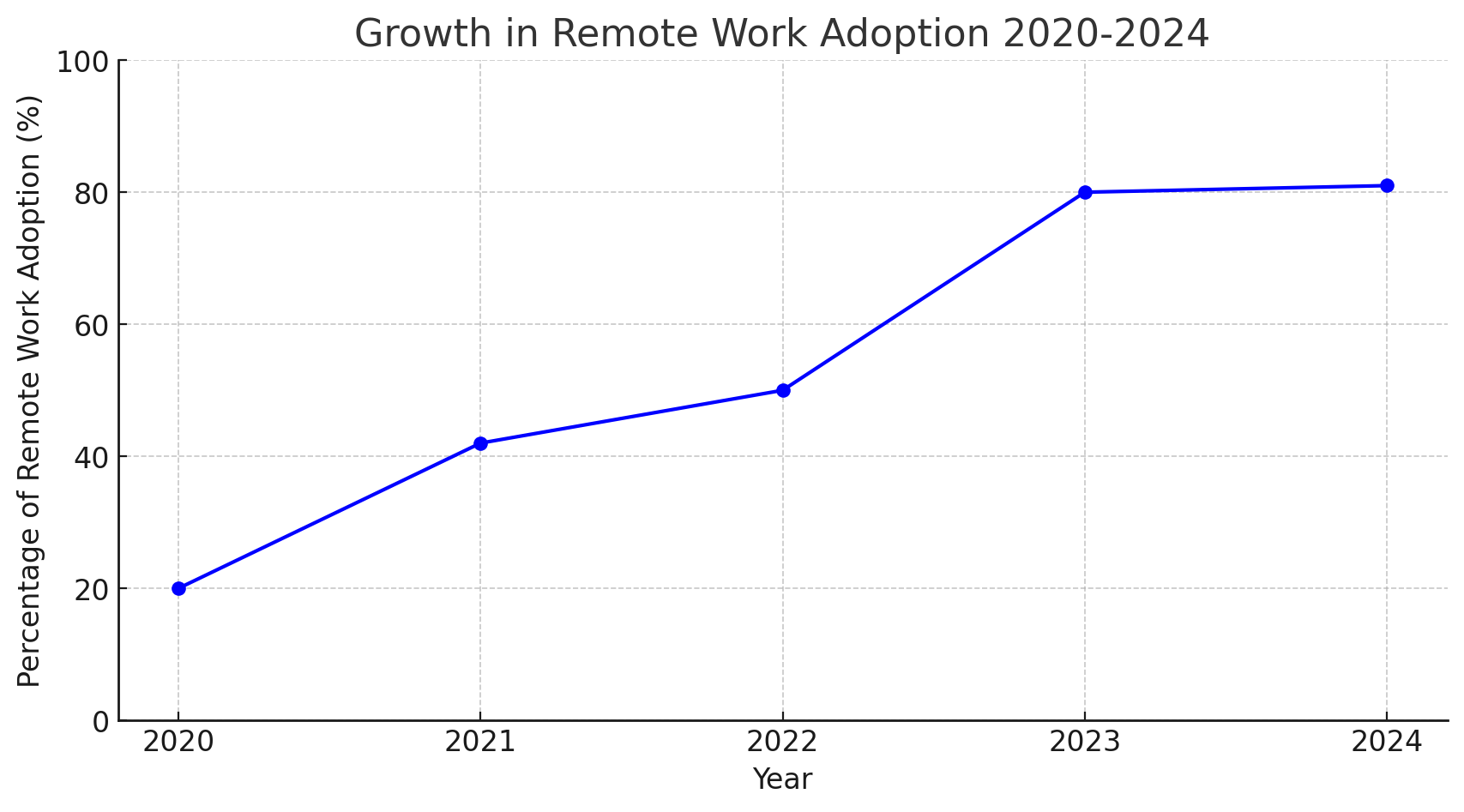
According to the Vietnam Digital Readiness report, 82% of survey participants expect work-from-home practices to increase even after COVID-19, indicating a shift towards a more hybrid work environment. As employees adapt to this lifestyle, organizations need to redefine workplace norms to better accommodate this trend.
Vietnam ranks 59th on the 2023 Global Remote Work Index, assessing 108 countries on their suitability for telecommuting, based on internet quality, digital infrastructure, and governmental digital initiatives.
The remote IT job market in Vietnam has experienced significant growth, with a 50% increase in listings on major platforms like VietnamWorks and TopDev over the past year, covering roles from software development to IT project management.
Remote work adoption has risen sharply from 20% in 2020 to an expected 81% by 2024, demonstrating a lasting shift towards flexible working arrangements post-pandemic.
Setting Up Proxies in the Cốc Cốc Browser
The Cốc Cốc browser is developed using the Chromium open source project. This means that its core settings, including proxy configurations, are similar to those in other browsers built on the same platform. Examples of such browsers include Google Chrome, Microsoft Edge, Opera, and Brave. These browsers share a common foundation, allowing for a consistent approach in managing settings like proxies.
Due to its reliance on the Chromium architecture, the Cốc Cốc browser lacks advanced proxy settings out of the box. It does not fully support proxy authentication via username and password, nor does it provide full support for the SOCKS protocol. This is a significant limitation as the SOCKS protocol is considered to be the most anonymous and versatile. As a result, users are forced to use proxies that support HTTP and HTTPS protocols, which may not provide the same level of anonymity as SOCKS.
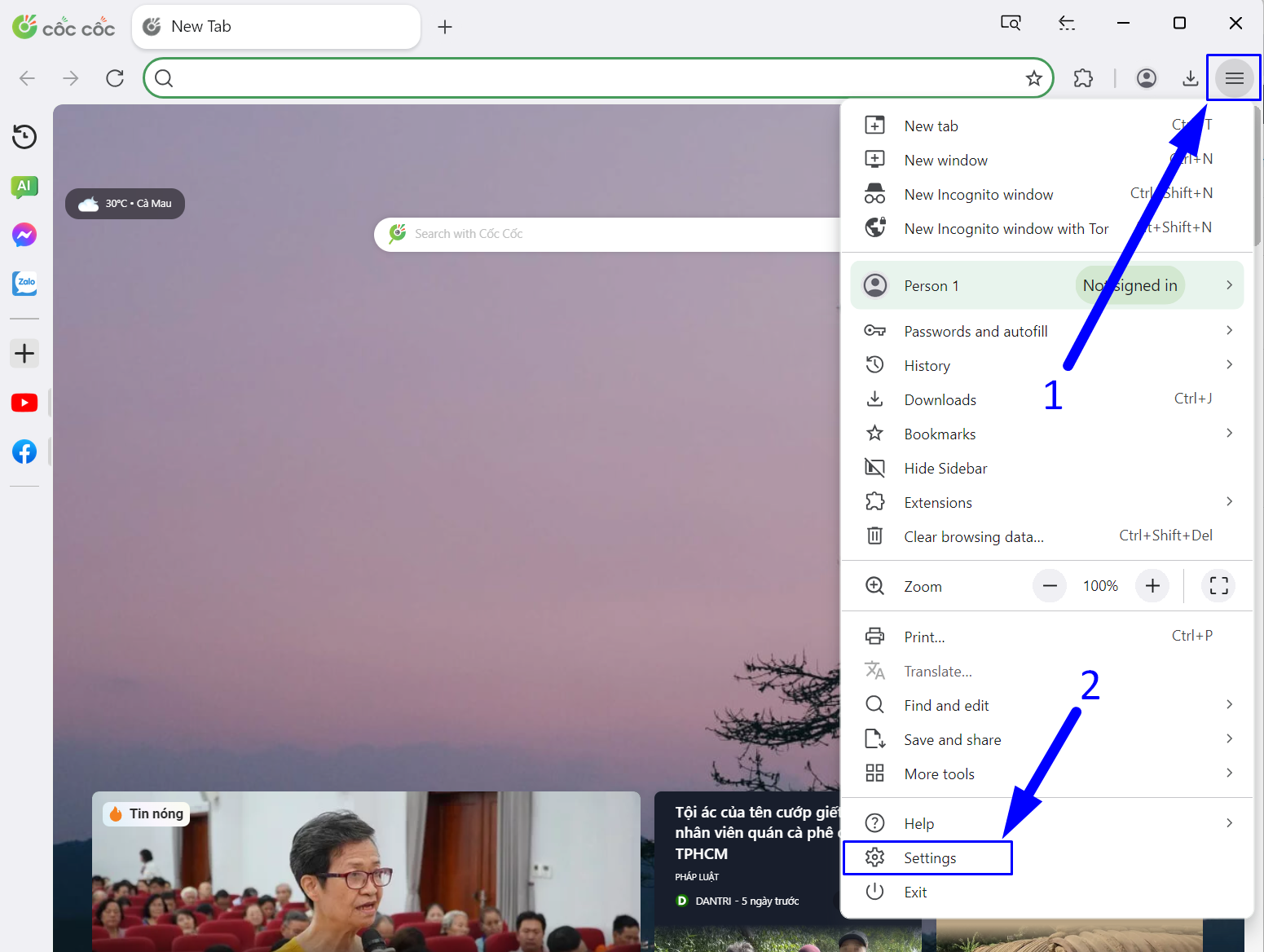
Step 1: Open the Browser Settings
- Click on the three horizontal lines (hamburger icon) in the top right corner of the browser window.
- In the menu that appears, click on "Settings".
Step 2: Open the System Proxy Settings
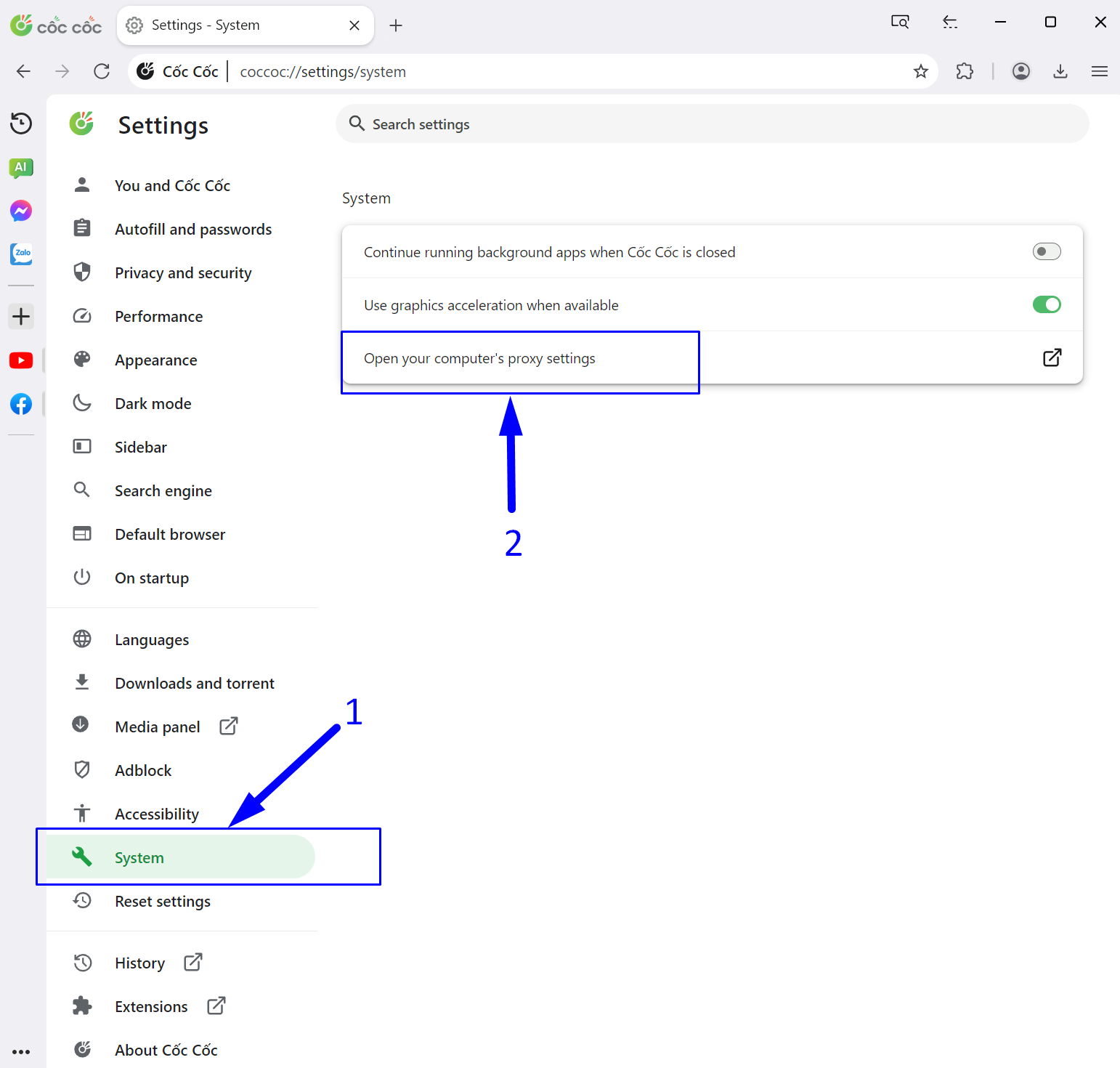
- In the left column of the menu that appears, select "System".
- In the "System" menu section, click on "Open your computer's proxy settings".
Step 3: Enter the Network Settings
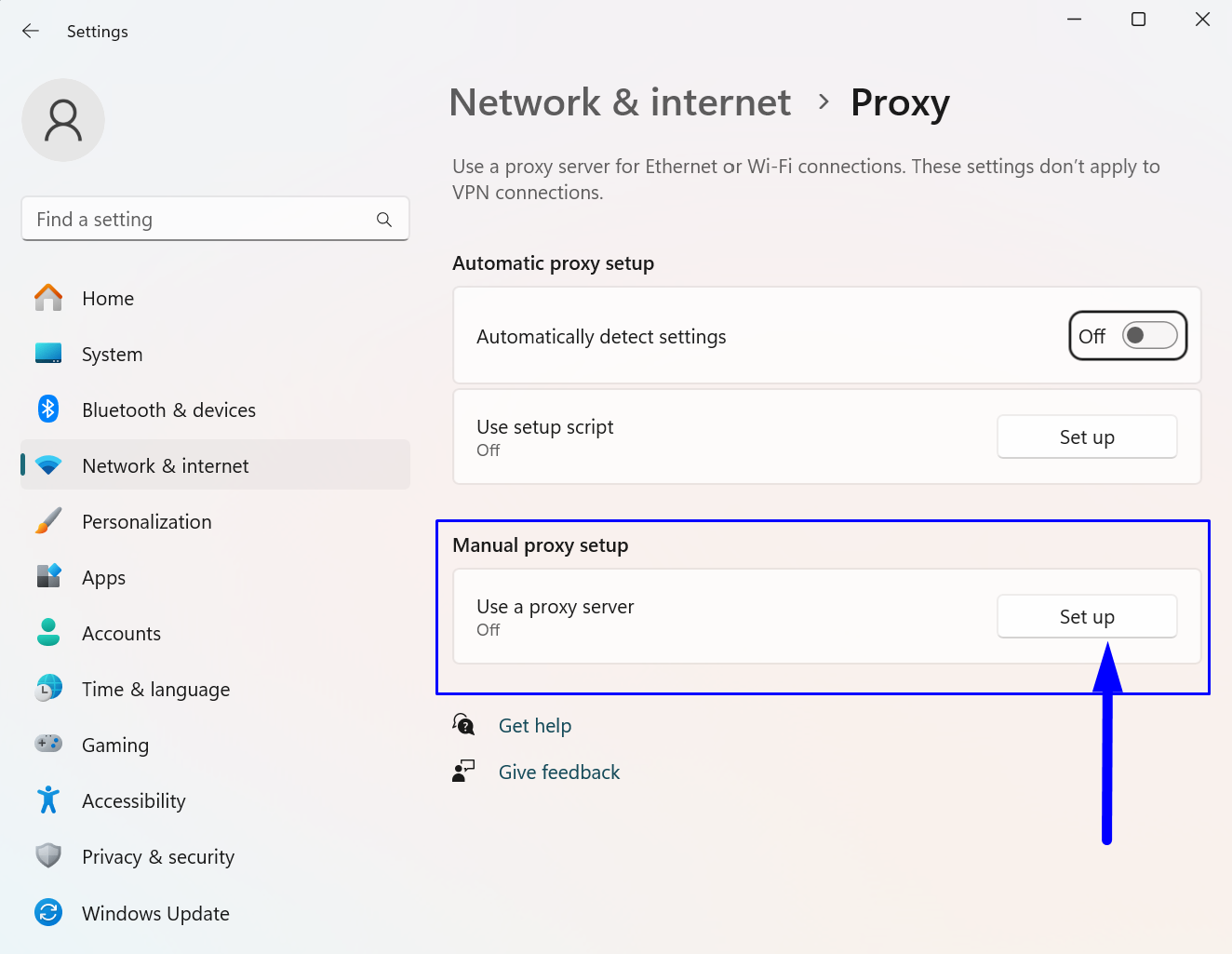
In the "Proxy" section of the menu, under "Manual proxy setup", click on the "Set up" button.
Step 4: Enter the Proxy Server Details
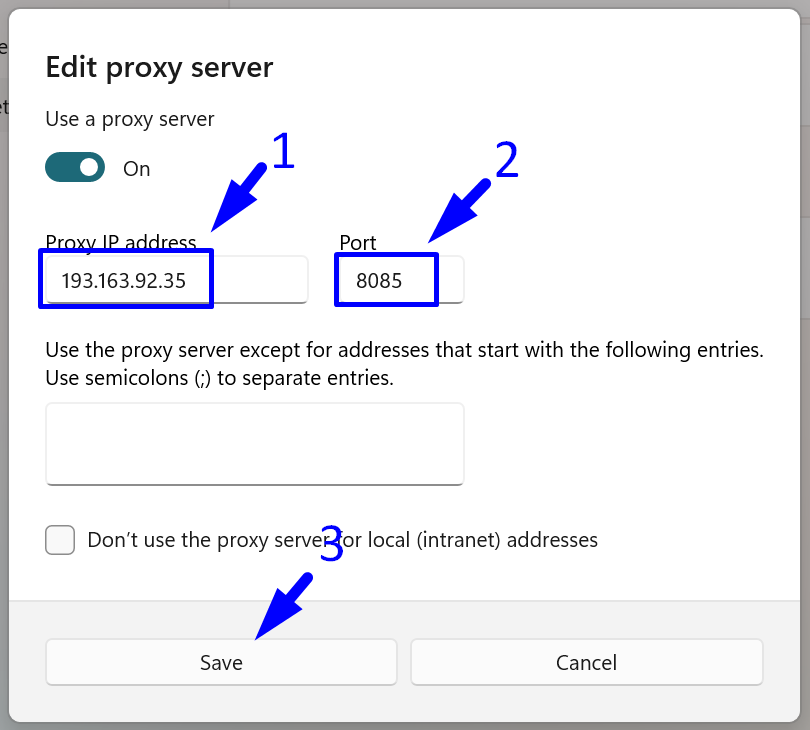
- Enter the IP address of your HTTP or HTTPS proxy.
- Enter the proxy port.
- Save the settings by clicking the "Save" button.
From this point, all your actions in the Cốc Cốc browser will be carried out through the specified proxy.
To see how this works in practice, you can purchase a premium proxy or try a free Vietnamese proxy.
https://proxycompass.com/knowledge-base/how-to-set-up-proxies-in-coc-coc/
Setting Up Proxies in Linken Sphere
What is Linken Sphere?
Linken Sphere is an advanced anti-detect browser designed for privacy-conscious users, especially those in the affiliate marketing industry. It offers robust tracking and fingerprinting prevention features, allowing users to effectively mask their digital identities.
Download Linken Sphere now to take advantage of these features.
Launched in 2017, Linken Sphere supports features that facilitate smooth multi-accounting and secure browsing, making it a popular choice among professionals who manage multiple online profiles for marketing and data collection purposes. The browser is celebrated for its user-friendly interface and powerful performance, setting trends in the anti-detect browser industry.
What Kind of Proxies are Needed for Linken Sphere and Why?
The use of proxies in Linken Sphere serves several important purposes:
1. Anonymity: Proxy servers hide your real IP address by replacing it with the proxy's IP address. This helps keep your online activities anonymous, which is critical for users involved in data scraping, SEO optimization, and Internet marketing.
2. Security: Proxies help protect your personal information from potential threats such as hackers and malware by isolating your requests from your device.
3. Bypass Restrictions: Proxies allow you to bypass geographic and IP-based restrictions, giving you access to content and resources that may be blocked in your country or region.
4. Multiple Account Management: In marketing and social media, managing multiple accounts often requires using different IPs to avoid account bans due to IP matching.
In Linken Sphere, users can configure proxy usage for each tab individually, providing unique customization options for different tasks.
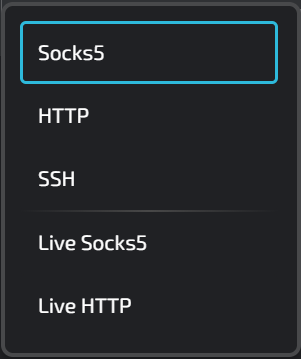
The types of proxies that can be used in Linken Sphere include:
Socks5: This type of proxy is very versatile and is often used in Linken Sphere for activities that require robust security and anonymity, such as managing multiple accounts on different platforms. It supports both TCP and UDP protocols, making it ideal for applications beyond simple web browsing. Learn more about Socks5 proxy.
HTTP: Suitable for regular web browsing within Linden Sphere, HTTP proxies can interpret and manage web traffic. This is useful for tasks such as web scraping or accessing geo-restricted content, as they can filter and cache data to improve load times and efficiency. Learn more about HTTP proxy.
SSH: While not typically used directly through browsers like Linken Sphere, SSH proxies can secure data transfer channels between the browser and remote servers. This can be particularly useful for securely accessing server resources or managing websites over an encrypted connection, increasing security when performing sensitive tasks. Learn more about SSH protocol.
Live Socks5 / Live HTTP: These are built-in free public proxies that have been pre-tested and are available to the users of the LS browser. Learn more about public proxies.
In our guide, we will be using Socks5 proxies as the most anonymous type of proxy. We will use data center hosted IPs. Overall, the LS browser allows the use of any other types of proxies, whether they are mobile or residential.
Below, we will explore the addition of different types of proxies required for various browser usage scenarios:
- Setting up a static proxy;
- Setting up a rotating proxy;
- Bulk uploading proxies using a list.
Step 1: Open the Proxy Manager in the Linken Sphere Browser
Adding proxy servers in this browser can be done in two ways. The first method is to create a new session and then add a proxy to the existing session. The second method is to add a proxy server to the browser's proxy manager and then assign it to future sessions.
To access the Proxy Manager in the browser, click on its label at the top of the program.
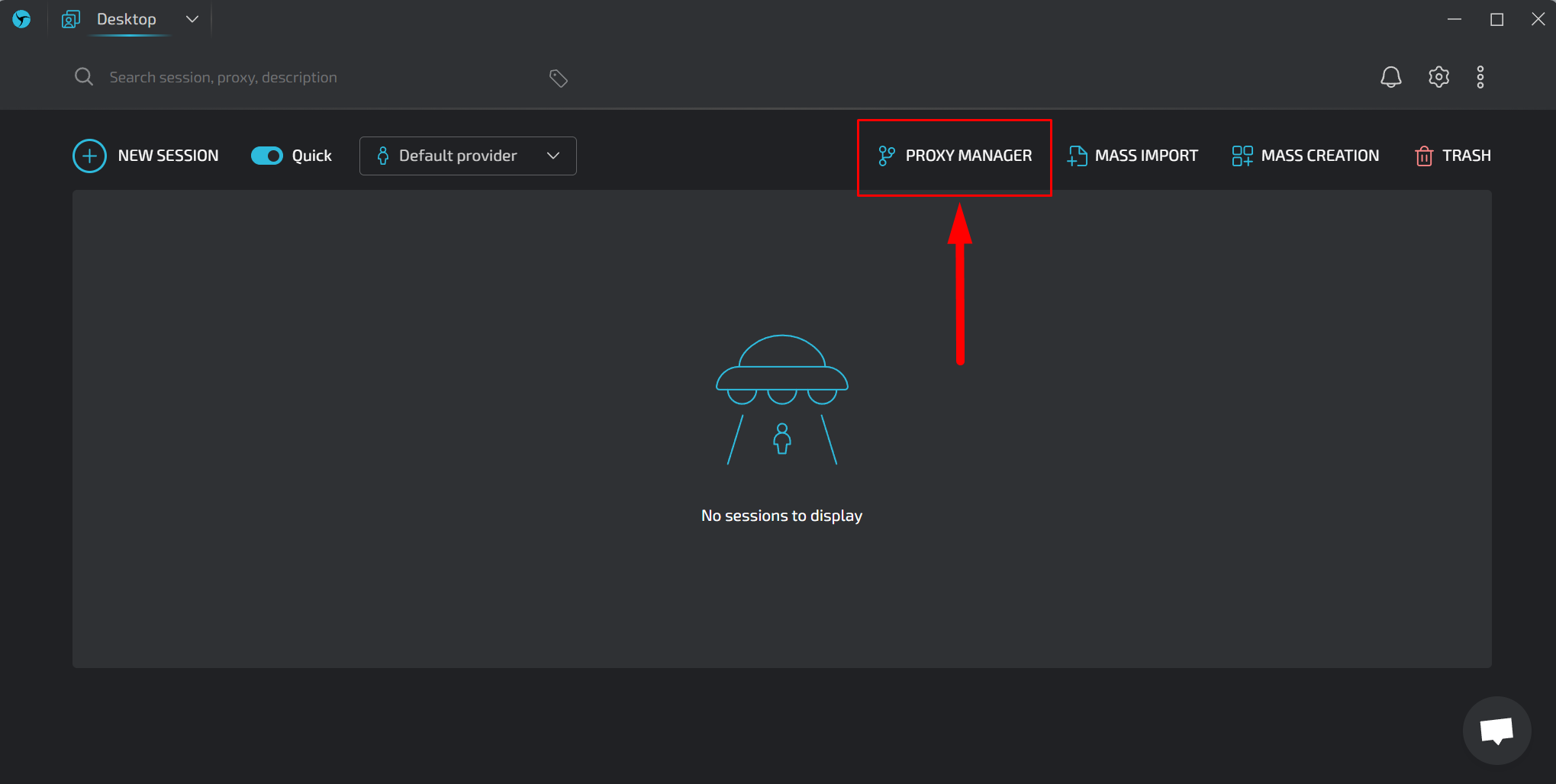
Scenario 1: Adding a Static Proxy
Static proxies in the Linken Sphere browser are critical for certain tasks because they provide a consistent IP address that does not change with each request. This stability is essential for operations that require a high level of trust from websites, such as managing long-term social media campaigns or online banking, where IP consistency helps avoid triggering security alerts and ensures a smoother experience.
To add a proxy, prepare it in one of the following formats:
ip:port for proxies authenticated by IP
ip:port@login:pass for proxies authenticated by username and password
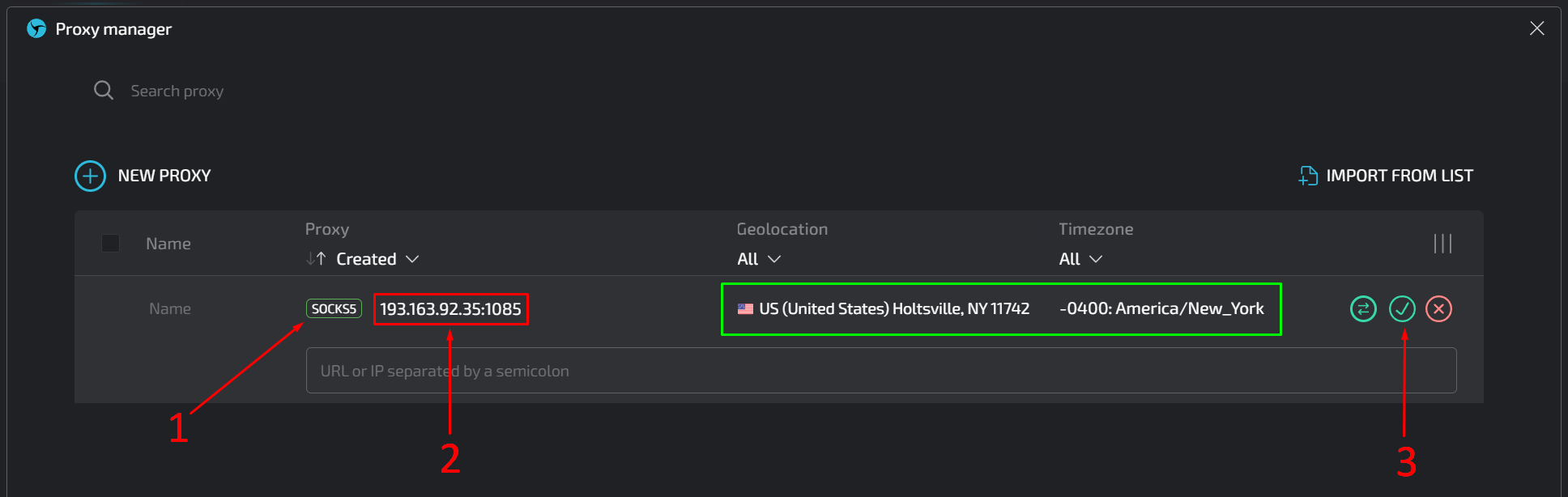
- Select the required proxy protocol by clicking on the label as shown in the screenshot.
In our case, it's SOCKS5.
- Copy and paste the IP address, port, and, if necessary, login and password for the proxy into the next field.
The Linken Sphere browser will automatically check the availability, geolocation, and time zone of the specified proxy (highlighted with a green frame in the screenshot).
- Click on the checkmark to save the data.
You can then assign this proxy to a specific session.
Scenario 2: Adding a Rotating Proxy
In the Linken Sphere browser, a rotating proxy may be necessary for tasks that require frequent IP changes to avoid detection and blocking, such as web scraping or managing multiple accounts. This scenario may occur less frequently than using a static proxy, but it is critical for activities where an IP address cannot be consistently associated with a user's behavior.
Adding a rotating proxy is similar to adding a static proxy, with the main difference being that instead of entering a proxy IP address, you must enter the gateway for rotating proxies. This gateway will provide random IP addresses for each new action in the browser (clicking a link, refreshing the page, etc.).
Here are the steps to follow:
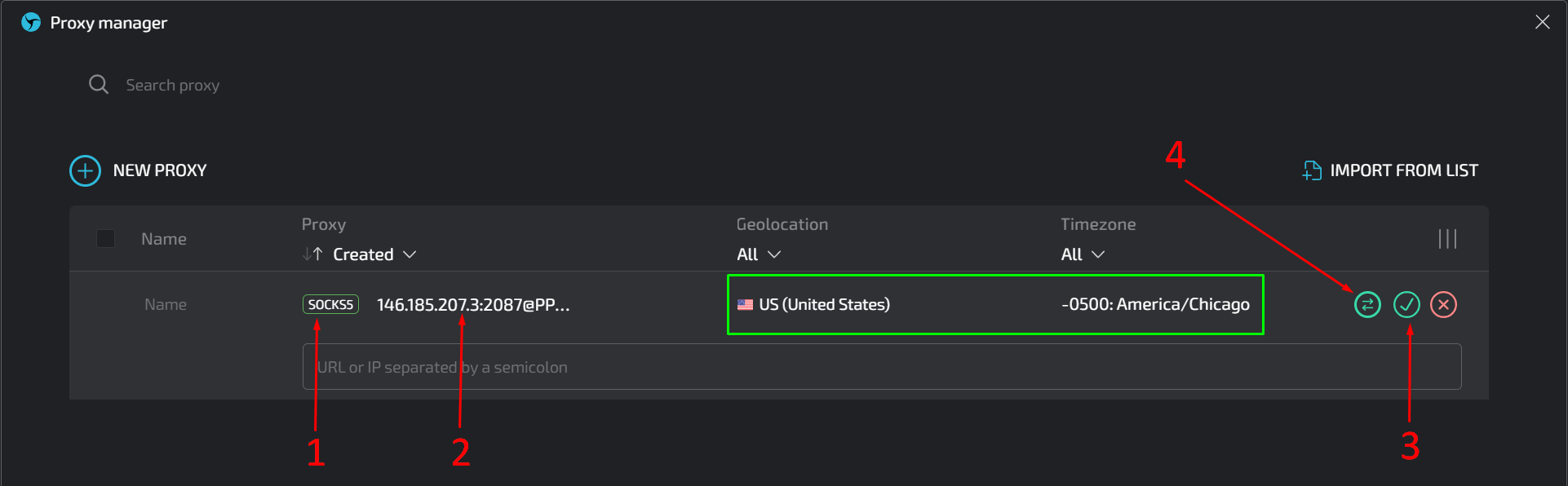
- Select the needed proxy protocol by clicking on the protocol label as shown in the screenshot.
- Copy and paste the IP gateway, port, and, if necessary, login and password.
- Click on the checkmark to save the data.
- Click on the icon with bidirectional arrows several times to ensure that the gateway is functioning, providing a new random IP with each click.
When you click on the icon with bidirectional arrows  several times, you should see a display similar to the one in the screenshot below:
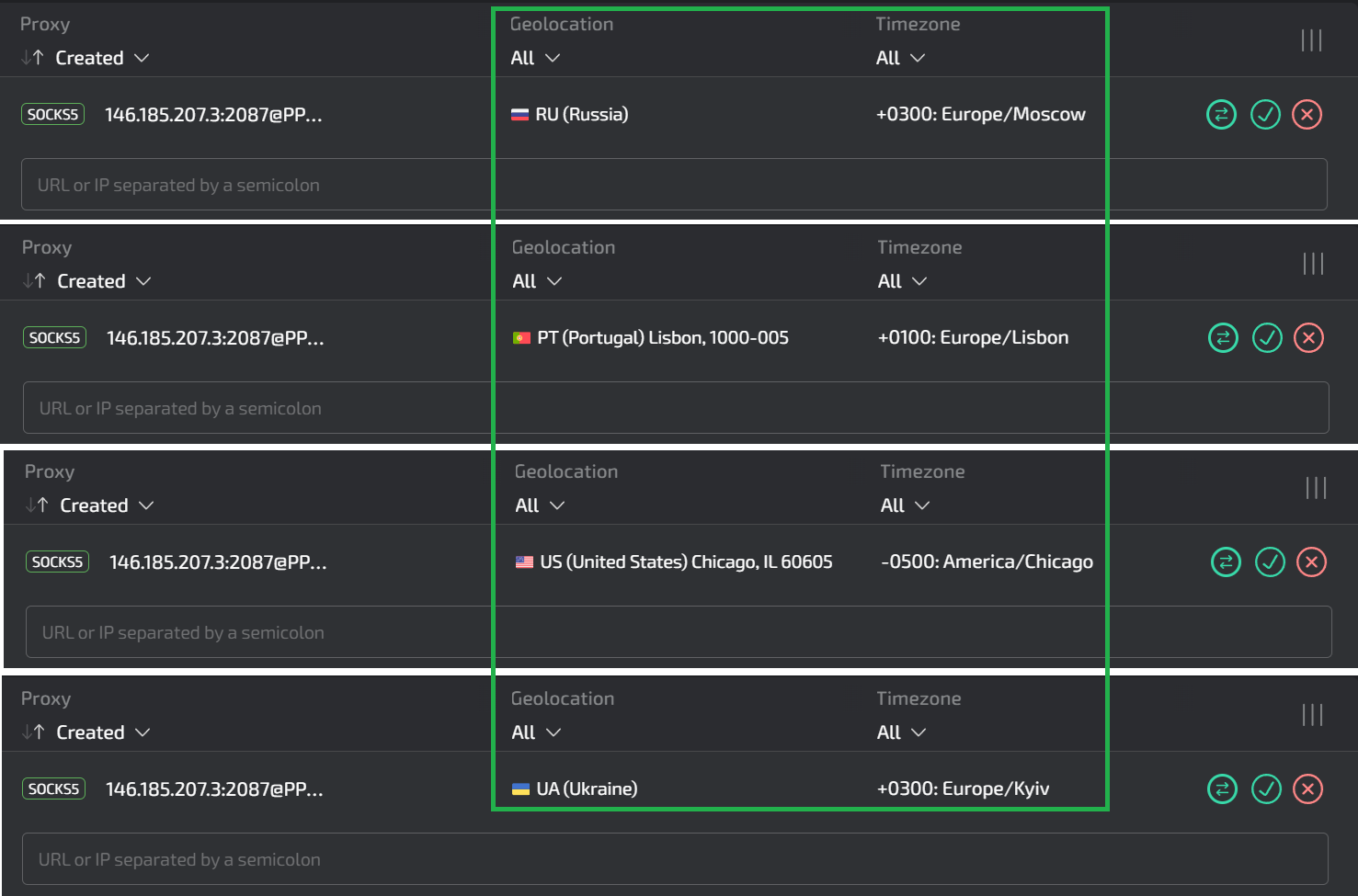
Great! The rotating proxy is ready to use and can be associated with a specific session in the Linken Sphere browser.
Szenario 3: Adding Proxies in Bulk
Adding proxies in bulk via a list in the Linken Sphere browser is ideal for users managing large-scale operations such as social media management across multiple geographic locations.
This feature simplifies the integration and management of multiple proxies, allowing for quick setup and ensuring that backup options are available for redundancy. It is particularly useful for tasks that require a diverse set of IP addresses to mimic local behavior or efficiently test regional settings.
To add your list to the browser, click on the “IMPORT FROM LIST” button in the Proxy Manager.
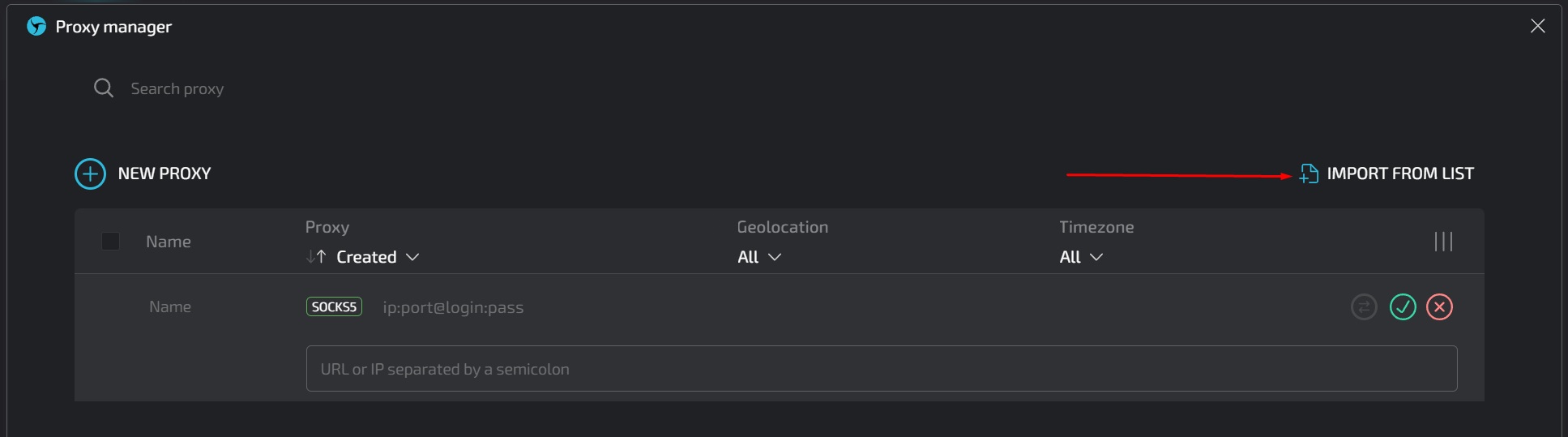
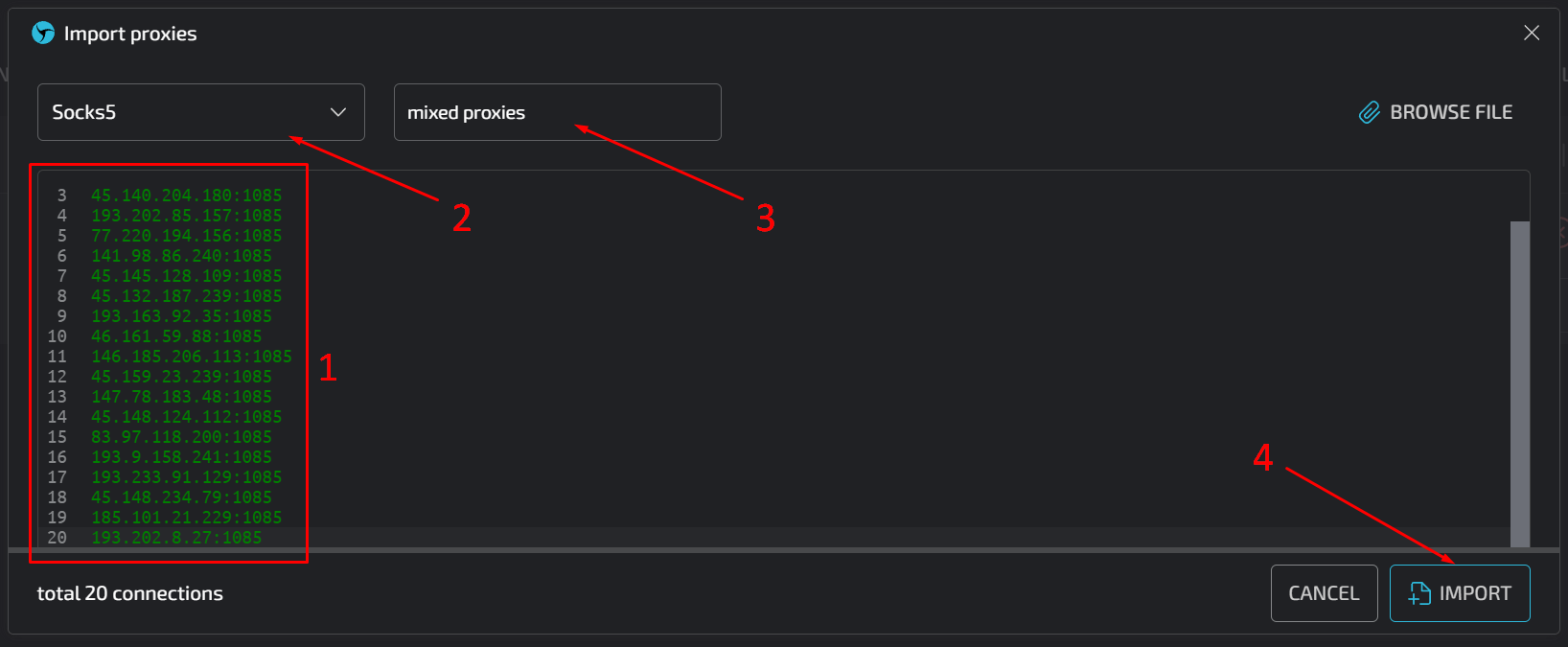
You can upload a text file with proxy data or do the following
- Copy and paste the proxy list into the appropriate field.
- Select the proxy protocol.
- Give the list an appropriate title. The Linken Sphere browser will add indexes to this name so that each proxy in the list has its own unique title.
Click the "IMPORT" button.
After completing these steps, a window will appear as shown in the screenshot below.
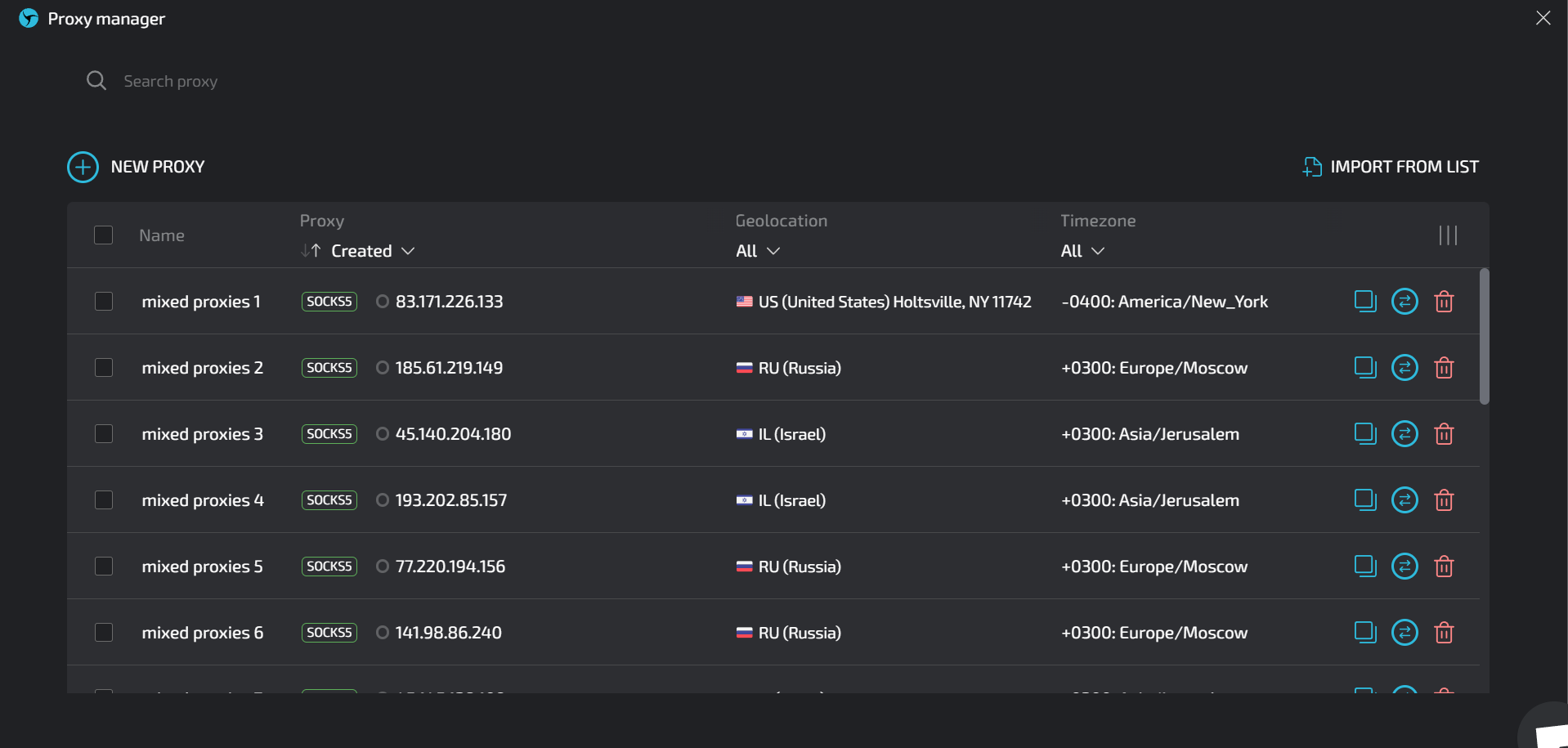
The Link Sphere browser will automatically check the connection to each proxy in the list and determine its geographic location and time zone. Now you can assign these proxies to the sessions required for specific tasks.
The Linken Sphere browser is now fully ready for use!
https://proxycompass.com/knowledge-base/setting-up-proxies-in-linken-sphere/
Montag, 13. Mai 2024
Setting Up a Proxy in Incogniton Browser
What is the Incogniton Browser?
The Incogniton Browser is a specialized anti-detect browser designed for managing multiple online profiles simultaneously. It allows users to operate numerous distinct identities with individualized browser environments, making it ideal for activities like social media management, affiliate marketing, and digital advertising. This browser supports the use of various proxy types to further assist with anonymity and reduce the risk of account bans or restrictions.
Why You Should Use Proxies with Incogniton Browser?
Using proxies with the Incogniton Browser significantly enhances user privacy by masking real IP addresses, which is crucial for managing multiple profiles without detection. This setup allows users to simulate access from various global locations, aiding in tasks like geo-targeted content testing and ad verification. Additionally, proxies help reduce the risk of account bans or restrictions on platforms where multiple logins might be penalized, making it an essential tool for digital marketers and social media managers who operate numerous accounts.
Setting Up a Proxy in Incogniton Browser
Incogniton Browser users have a variety of choices when it comes to enhancing their online experience with proxies. They can choose either rotating or static proxies, depending on their needs for stability or changing IP addresses.
There is also a choice of proxy protocols. HTTP/S proxies offer faster data transfer, making them suitable for speed-intensive browsing.
On the other hand, SOCKS proxies offer a higher level of anonymity, which may be preferred by users seeking greater privacy. Ultimately, it is up to the user to decide which type or protocol to use.
In this guide, we will demonstrate how to add SOCKS proxies to the Incogniton browser, using both static and rotating proxies as examples.
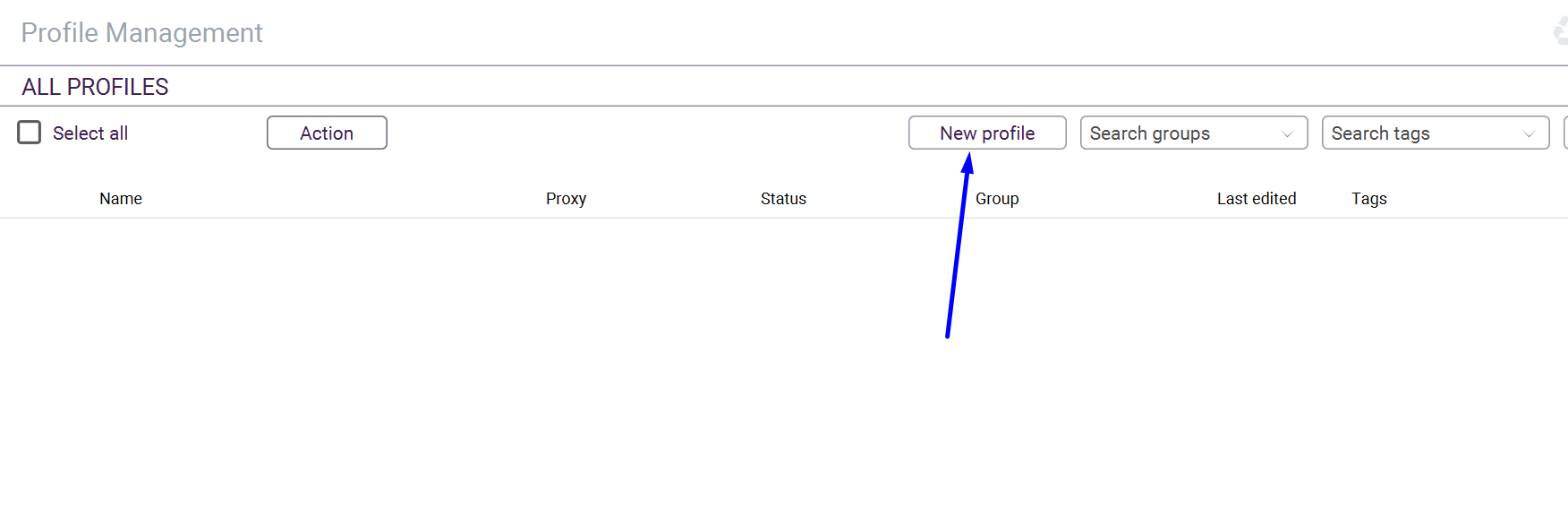
Step 1: Create a New Profile
Open the Incogniton anti-detect browser and create a new profile by clicking the corresponding button.
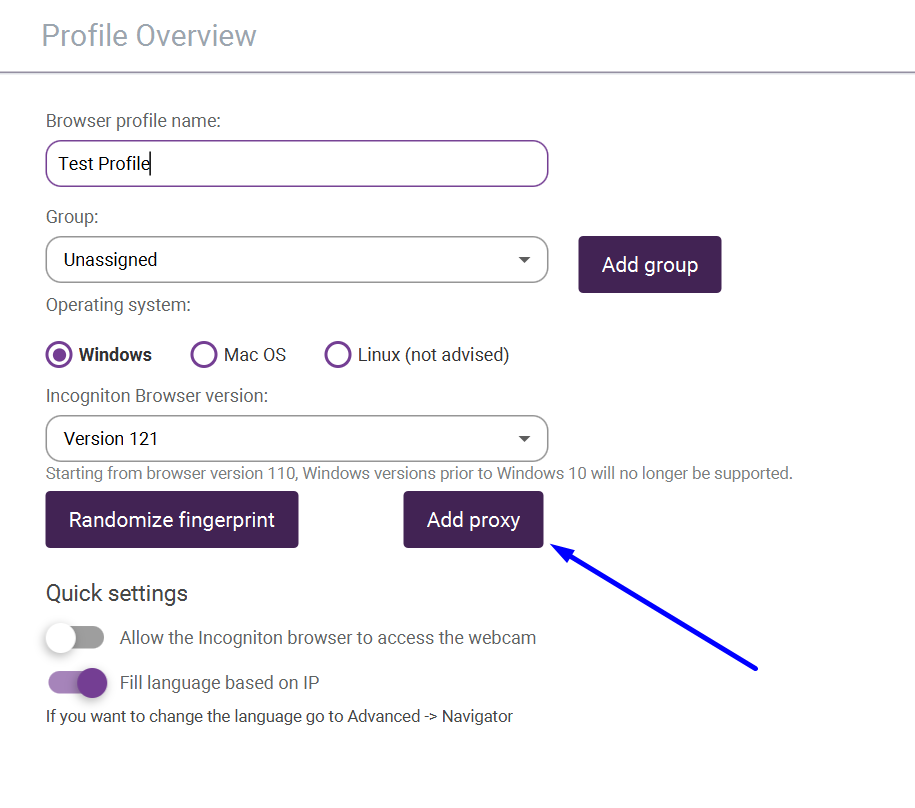
Step 2: Add a New Proxy
Set a name for the profile, select the desired operating system and then press the "Add proxy" button.
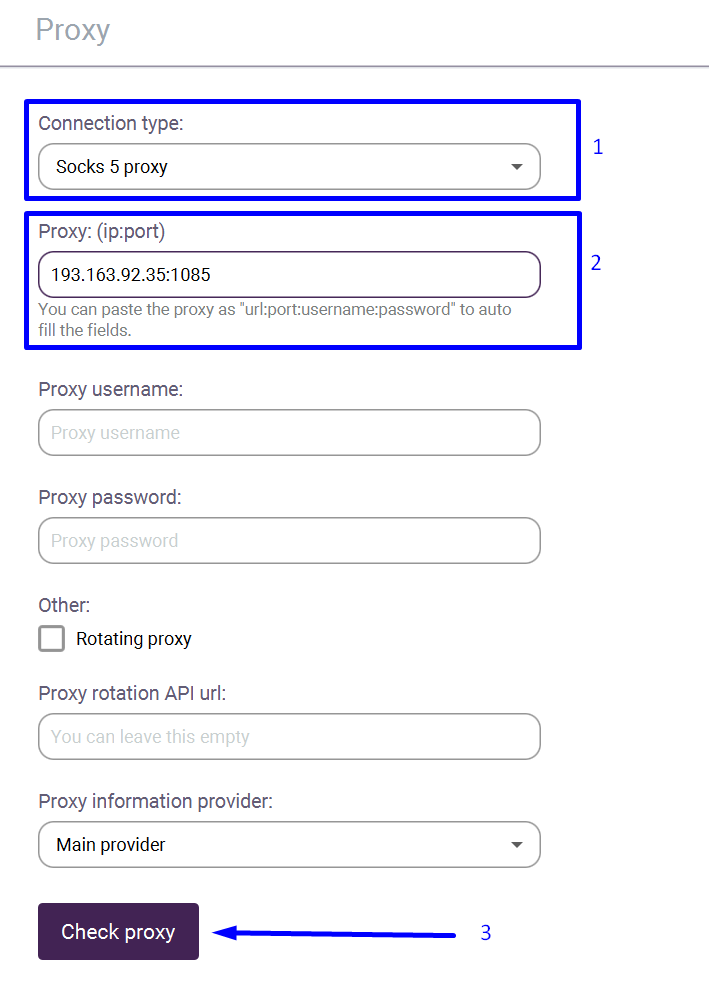
Step 3: Add a Static SOCKS5 Proxy
Select the appropriate protocol, enter the IP address of the proxy and its port. Then click the "Check proxy" button.
Step 4: Add a Rotating SOCKS5 Proxy
For a rotating proxy, you will need to enter the IP and Port, as well as your username and password. Check the box next to "Rotating proxy".
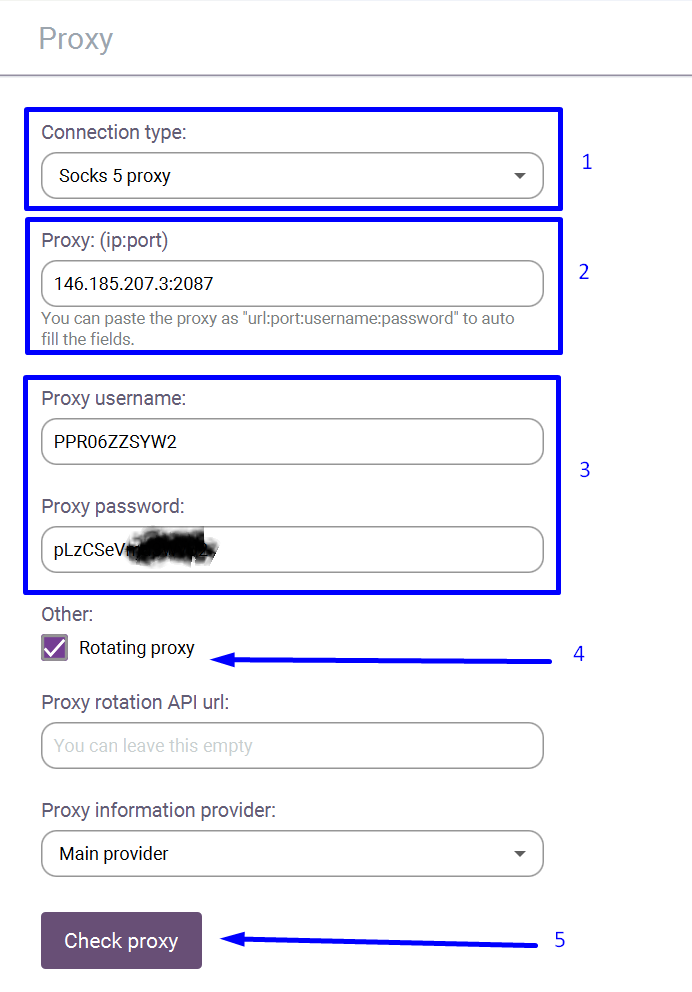
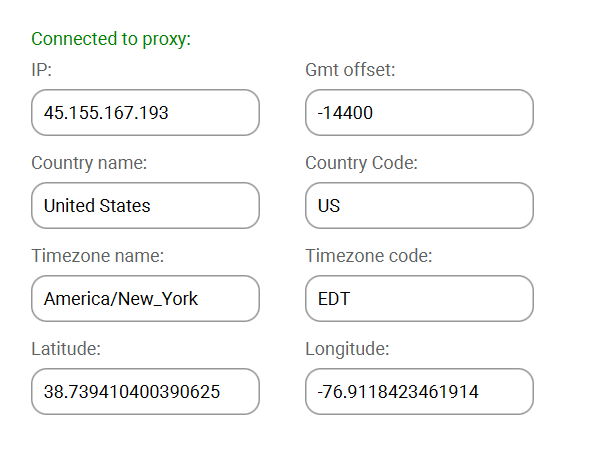
Step 5: Check if the Proxy Works Properly
The proxy has been tested for functionality.
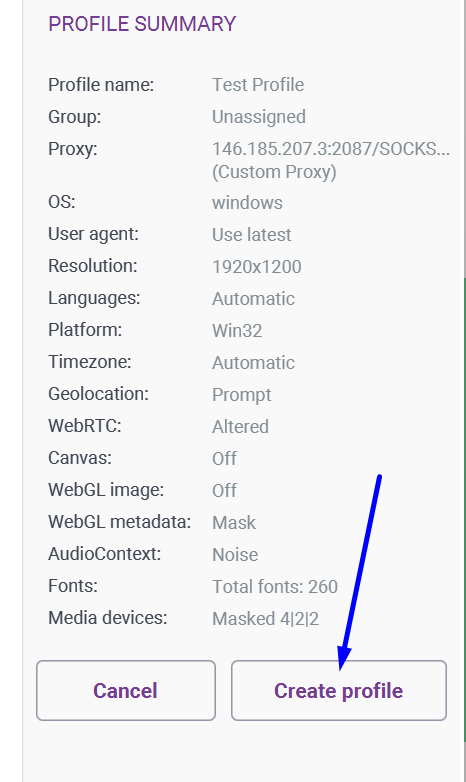
Step 6: Finalize Creating Your New Profile
Click the "Create profile" button to complete the setup of the new profile.
Step 7: Start Working with the Profile
Everything is ready. You can start working now.
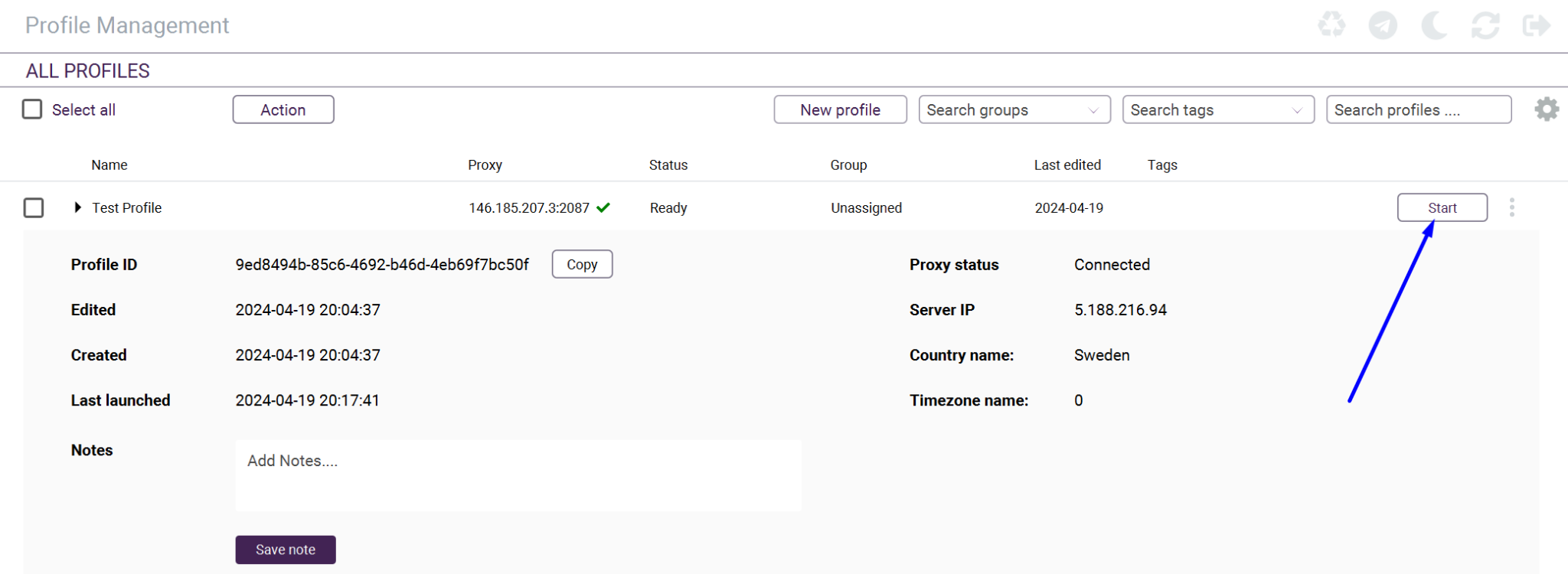
When you click the Start button, a new Incogniton browser window will open. Your IP will be masked by the proxy server's IP.
If you have chosen to use a rotating proxy, your IP address will change with every new browser window refresh or when you navigate to a new page.
https://proxycompass.com/knowledge-base/setting-up-a-proxy-in-incognition-browser/
Setting Up Proxies in Dolphin {Anty} Browser
What is Dolphin Anty?
Dolphin Anty is an anti-detect browser designed to support multi-login capabilities, enabling users to manage multiple profiles anonymously on the same device. Each profile maintains a unique fingerprint and isolated parameters like cookies, ensuring independent web environments.
Ideal for automation, this browser excels in tasks such as affiliate marketing on platforms like Facebook, TikTok, and Google, and it's also effective for traffic arbitrage.
As a contemporary antidetect browser, Dolphin Anty offers superior feature substitution, facilitates seamless team collaboration, and allows for efficient tracking of account statuses, note-taking, and proxy management.
Why Should You Use Proxies with Dolphin {Anty}?
Using proxies with Dolphin Anty can significantly enhance the browser's functionality and the user experience in several key ways:
- Increased Anonymity: Proxies mask your real IP address with another, helping to prevent websites from tracking your actual location and identity. This is crucial when managing multiple accounts to avoid detection and bans.
- Simulate Different Locations: Proxies allow you to access the internet from different geographical locations. This is particularly useful in tasks like ad verification, market research, and content testing across different regions.
- Avoid IP Blocks and Bans: When using multiple accounts on platforms like Facebook, Google, or TikTok, especially for affiliate marketing or traffic arbitrage, the same IP address performing too many actions can lead to IP bans. Proxies help mitigate this risk by rotating IP addresses.
- Improved Performance: Certain proxies can enhance browsing speeds by caching web pages, reducing load times, especially when accessing sites from distant servers.
- Effective Team Collaboration: For teams managing multiple profiles, using shared proxies can help synchronize strategies without risking account security, enabling seamless workflow and data consistency.
Incorporating proxies into Dolphin Anty thus supports safer, more efficient, and more strategic management of multiple accounts across different platforms.
Setting Up a Proxy in Dolphin Anty
This browser supports all known types of proxy servers. In our guide, we will cover the setup and use of both static and rotating proxy servers.
We will utilize the SOCKS5 protocol for both types of proxies, as it offers the most versatility and anonymity.
Step 1: Create a new user profile
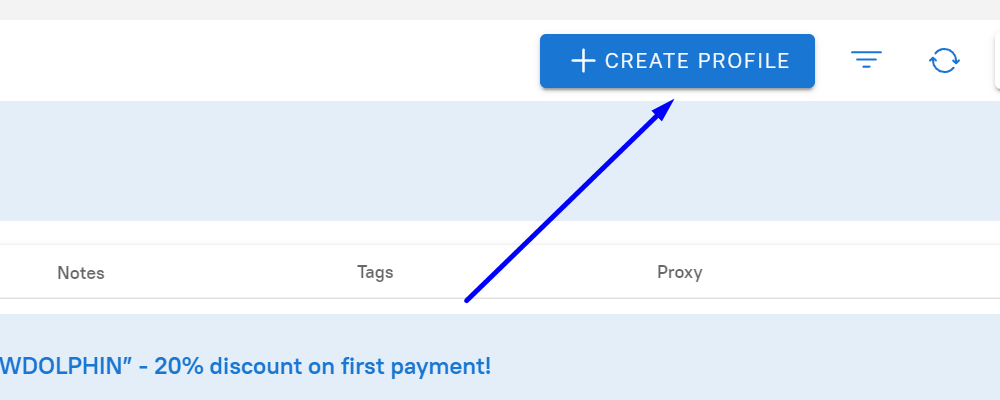
At the top of the screen, click on the '+ CREATE PROFILE' button.
Step 2: Add a New Proxy
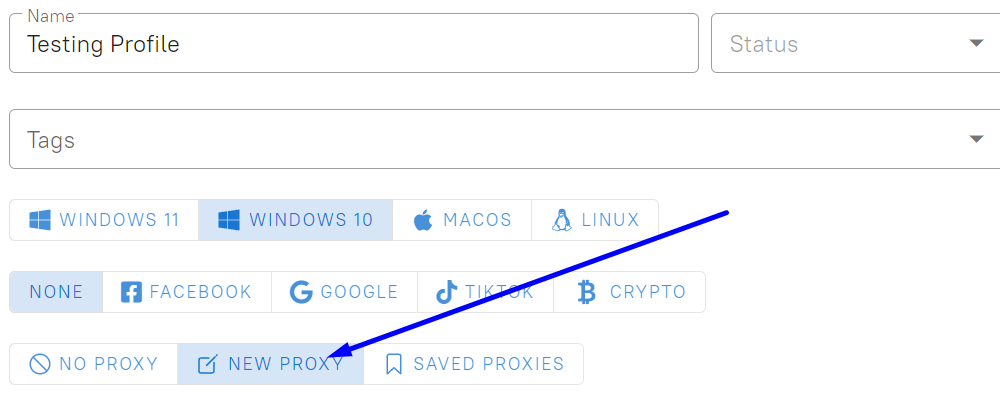
A new settings area will appear. In the corresponding fields, enter the profile name, select its status, and set tags as needed. At the bottom, there is a line with supported proxy types. Select 'New Proxy'.
Step 3: Enter Proxy Server Data
The Dolphin Anti browser supports all types of proxy servers, including free ones (their use is not recommended, but can be justified in some cases), as well as data center, mobile, and residential proxies.
Below, we will demonstrate how to install data center proxies of both IP allocation types: static and rotating.
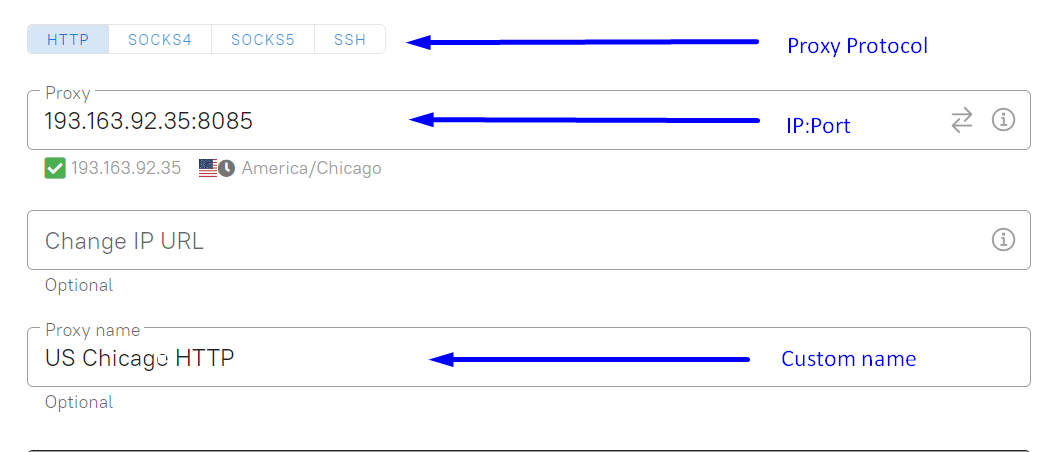
Static Proxy: Specify the required proxy protocol, its IP address, port, and other properties as needed
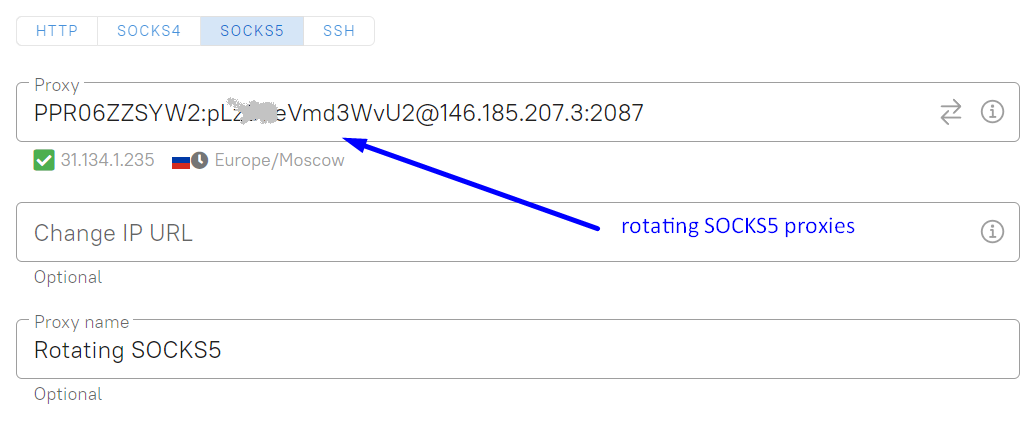
Rotating Proxies: To use rotating proxies from ProxyCompass, you need to enter your details in the "Proxy" field in the format:
login:password@host:port
Here's what it looks like with an actual example:
Step 4: Save Your New Profile
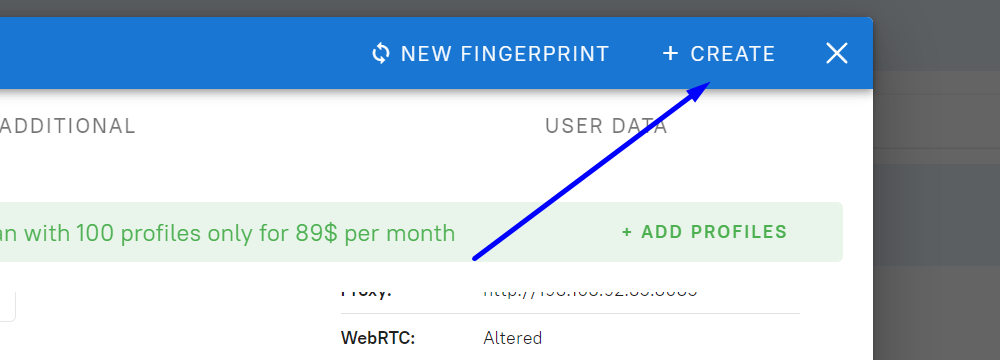
To complete the proxy setup in the new profile, click the '+ CREATE' button.
Step 5: Start Using Your New Profile With Proxy
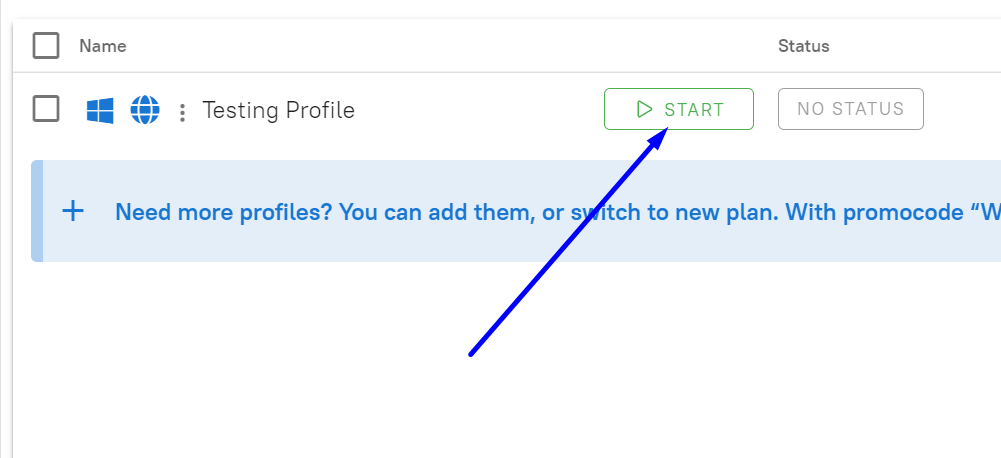
Click the 'Start' button. A new browser window will open using the proxy server.
Now, all traffic from this browser will be routed through a proxy server, enhancing your online security and helping to preserve the confidentiality of your real IP address.
https://proxycompass.com/knowledge-base/setting-up-proxies-in-dolphin-anty/
Abonnieren
Posts (Atom)